Point of sale
Dejavoo terminal help
Stratamize wrote these guides from Dejavoo’s published manuals. Start by finding which software your terminal runs, because the menus depend on it.
About two minutes. Our team follows up.
Start here
Find which Dejavoo you have
Two terminals of the same model can show different menus. The model decides the hardware, and the payment software and the provider’s settings decide what is on the screen. Match your terminal to one of these three before you follow any steps.
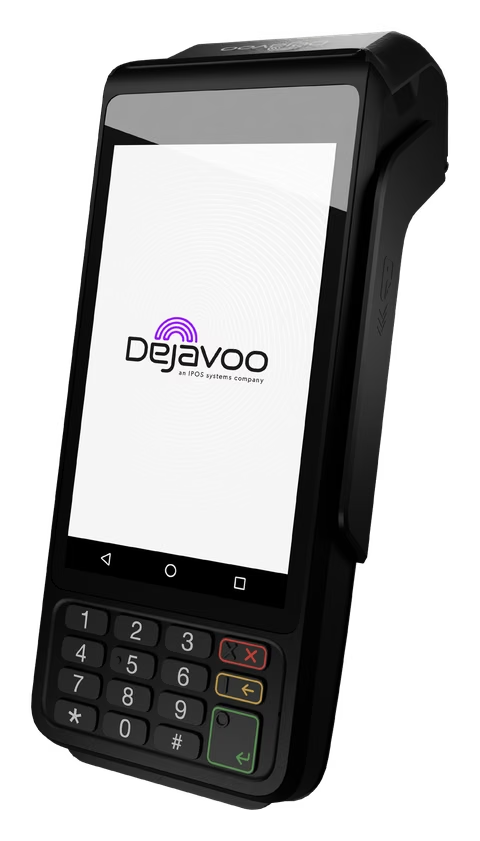
Dejavoo’s user manual says a Z series terminal shows a model number beginning with Z. The QD and P lines are Dejavoo’s Android terminals. See every terminal we set up if you are not sure which one is on your counter.
- Android terminal with AURA
- Android terminal with iPOSpays software
- Z-line Linux terminal
The guides
Step by step, with sources.
Who changes what
Most settings belong to your provider
Your provider is the company your merchant account came through. Dejavoo’s portal manual shows the provider creating each terminal and then editing its parameters: receipts, tips and taxes, transaction types, settlement, fees and integrations. Those settings are sent to the terminal. They are not menus you were meant to change at the counter.
The same manual lists a module the provider can switch on so a merchant can view or edit those parameters in the portal. If yours is off, the provider makes the change. That is why several of these guides end with questions to ask instead of a button to press.
The iPOSpays guide also describes a CALL ME BACK option under the Support icon. It opens a ticket and the support team phones you. On AURA terminals the similar Call Me option has to be enabled first.
Before you call
Five things to have ready
Support goes faster when you can answer these without walking back to the counter.
- The model, such as QD4, P1 or Z11
- What the home screen shows: payment icons, or an ENTER AMOUNT keypad
- The exact words of any message on the screen, written down or photographed
- Whether the Wi-Fi icon is steady or blinking. Dejavoo’s guides say it blinks when the terminal is not connected
- Your last settlement report, if the question is about money that has not arrived
A second look
Provider not helping?
Stratamize is an independent merchant services agent. If the company that set up your terminal is not answering, we can review the setup with you and tell you what to ask for. Changes to an existing terminal file still have to come from the provider on that account.
If you would rather move, you apply for a merchant account in your own business name through one of our banking partners, subject to approval, and we program the terminal with you.
Why does my menu not match the guide?
Dejavoo terminals run more than one payment app, and each provider builds its own terminal file. We name the software each set of steps was written for. If your screen differs, your provider has the steps for your build.
Is there a default manager password?
Dejavoo’s guides mention factory defaults, and providers often change them. We do not print passwords here. Ask your provider for the one on your terminal.
Can Stratamize change a terminal another provider set up?
No. The terminal file belongs to the provider on the account. We can review the setup with you and tell you what to ask them for.
Sources
Where these facts come from.
- Dejavoo, User Manual for all terminal products (V and Z series), checked 2026-11-20
- Dejavoo, Quick Reference Guide for QD and P Series Android models using iPOSpays software (copy hosted by GETTRX), checked 2026-11-20
- Dejavoo, Quick Reference Guide, EMV Retail, Android terminals with AURA (copy hosted by Paystri), checked 2026-11-20
- Dejavoo, Quick Reference Guide, EMV Retail, touch screen Z-Line Z9 and Z11 (copy hosted by GETTRX), checked 2026-11-20
- Dejavoo, iPOSPays User Manual, checked 2026-11-20
Point of sale
Tell us how the terminal is set up today.
We recommend the setup, quote it and set it up with you.
Every merchant account is subject to underwriting approval.
Ask about Dejavoo by email