Point of sale
iPOSpays portal: how merchants sign in
Stratamize explains the iPOSpays sign-in from Dejavoo’s own portal manual: the address, the username and what a merchant finds inside.
About two minutes. Our team follows up.
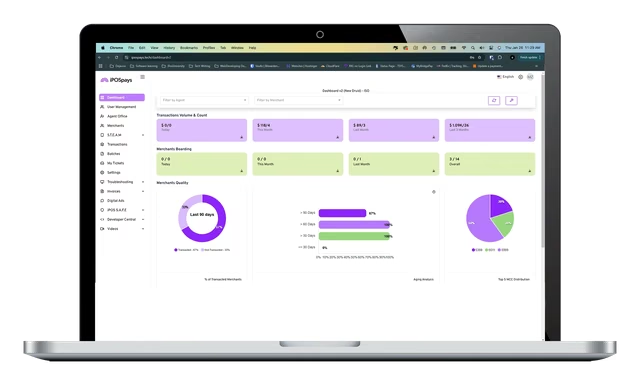
Signing in
The address and your username
iPOSpays is the portal behind Dejavoo terminals and the iPOSpays gateway. Dejavoo’s portal manual gives the sign-in in two lines.
- Go to www.ipospays.com
- Enter your username
- Enter your password
No activation email? The record may have been created with a different address. Your provider created it, so ask them which email is on file before you try anything else.
What you see
Your provider decides which modules are on
Two merchants can sign in to the same portal and see different things. When a provider adds a merchant, the manual has it choose modules and privileges for that merchant. It names three.
- STEAM
- CloudPOS
- My Customer
If you cannot find invoices, or the terminal settings, the module is probably off. That is a request to your provider, not a fault in your account.
Terminal settings
What the terminal parameters cover
With STEAM on, each terminal has a set of parameters. The manual lists them in this order.
- Receipts: what prints, and which copies
- Tips and taxes: whether tips are on, whether tip choices print on the receipt or show on the terminal, and up to two tax labels. With tips on, the manual says tips can be adjusted from the portal
- Transactions: which transaction types, card entry methods and card types the terminal accepts
- Settlement: manual, where you settle from the terminal, or automatic at a set time. See batching out
- Fee: the consumer choice setting behind dual pricing
- Integration: SPIn for register software, or a PIN pad paired with the terminal
Being able to edit a parameter does not make it a good idea. These values drive live sales, and some have to match how your merchant account was set up. Look first, and ask your provider before you change anything you did not set.
Stores and terminals
Finding the right terminal
The portal arranges things as merchant, then store, then device. Each device gets its own terminal number, which Dejavoo calls a TPN, generated when the device is added. The provider can give each one a label, and the manual’s own example is a label for the third billing counter.
If you have more than one terminal, learn which TPN is which. Support will ask for it, and a setting changed on the wrong one is a hard mistake to spot.
The manual also says the store record carries the store manager’s email, and that access for a manager is set up in the portal’s user management section. Give each manager a sign-in of their own.
Know the limits
What the portal does not replace
The manual describes the portal as the place for terminals, online payments, customers and invoices. Questions about your fees, your deposits and your agreement go to the provider on the account.
Stratamize sets up the gateway side for businesses that want a checkout page or payment links. See the iPOSpays gateway and DeNovo, the back office for sales, receipts and batches.
A second look
Provider not helping?
Stratamize is an independent merchant services agent. If the company that set up your terminal is not answering, we can review the setup with you and tell you what to ask for. Changes to an existing terminal file still have to come from the provider on that account.
If you would rather move, you apply for a merchant account in your own business name through one of our banking partners, subject to approval, and we program the terminal with you.
Taking payments online or by phone as well? Ask us first and we answer by email.
What is the iPOSpays login address?
Dejavoo’s portal manual says to go to www.ipospays.com. When we checked on 2026-11-20 it forwarded to portal.ipospays.com.
What is my iPOSpays username?
The manual says the merchant’s email address is the username. It is the email your provider entered when it created your record, and the activation email goes to it.
Why can’t I see invoices or my terminal settings?
The provider chooses which modules each merchant gets. Ask yours to turn on the module you need.
Can I change my batch time in the portal?
Only if your provider turned on the module that lets a merchant edit terminal parameters. Settlement is one of them. If you do not see it, ask the provider to make the change.
Sources
Where these facts come from.
- Dejavoo, iPOSPays User Manual, checked 2026-11-20
- Dejavoo, iPOSpays Cloud POS, checked 2026-11-20
- Dejavoo, Resource Center (manuals and guides), checked 2026-11-20
Point of sale
Tell us how you use iPOSpays today.
We recommend the setup, quote it and set it up with you.
Every merchant account is subject to underwriting approval.
Ask about Dejavoo by email