
RETAIL POS
Ring the sale without losing sight of the shelf.
Connect the cart to product records, stock movement, customer context, staff controls, purchasing, and the reports used to run a retail operation.

Representative workflow
From item lookup to reorder decision
A useful retail demo should prove the sales path and the operating records around it.
-
01
Build the cart
Find products, adjust quantities, assign a customer when useful, and review the order.
-
02
Collect payment
Use the supported terminal and merchant-account configuration to complete the sale.
-
03
Review stock movement
Check item and location quantities, low-stock status, reorder points, and transfers.
-
04
Read the result
Review transactions, average ticket, products, employee activity, payments, customers, and inventory.
Product proof
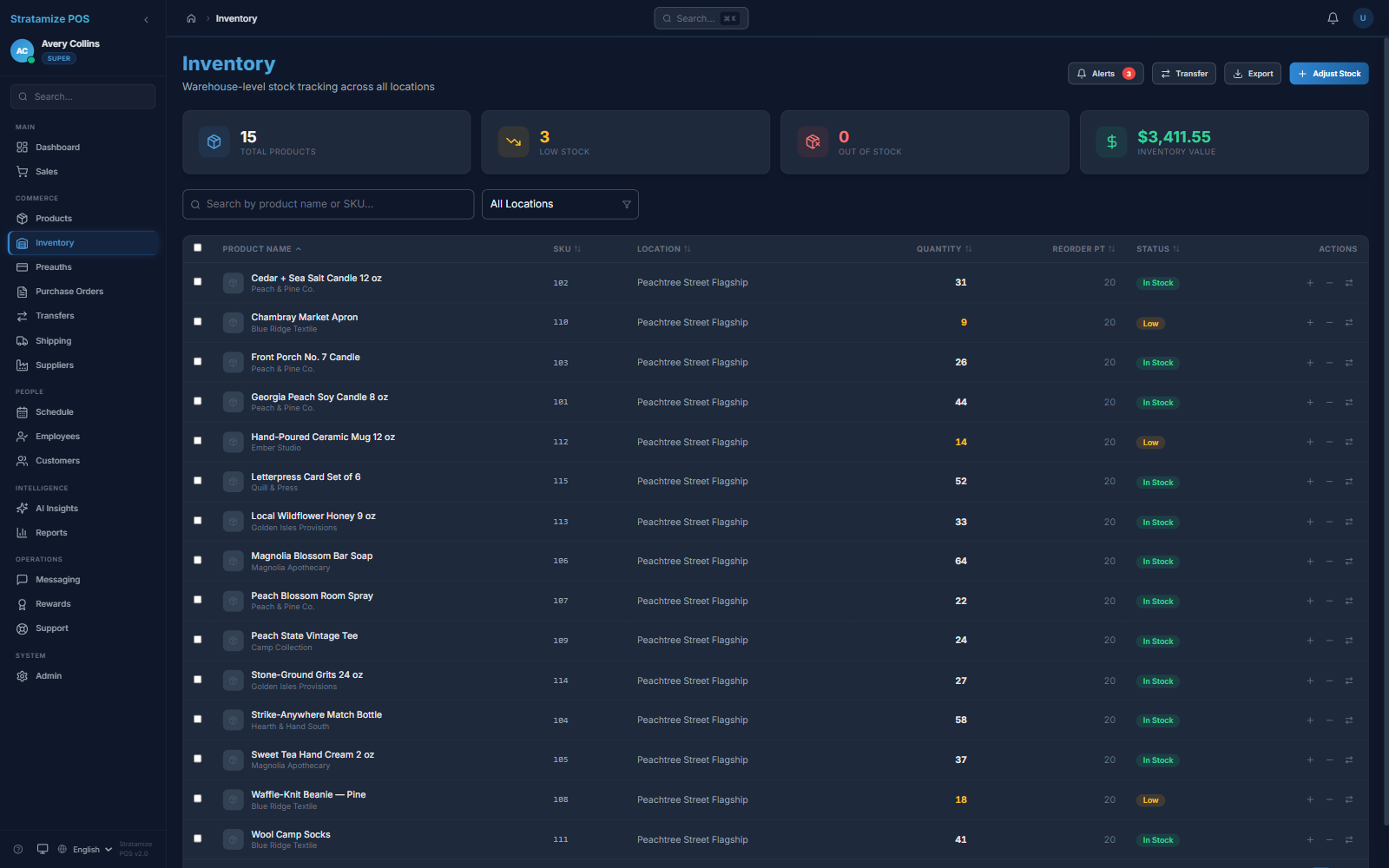
Inventory is an operating view, not a spreadsheet export
The product exposes quantities, location, reorder points, status, and inventory value alongside purchasing and transfer workflows.
STRAIGHT ANSWERS
Retail fit questions
Can existing product data be moved?
Data migration depends on what your current system can export and the quality of the catalog. We inspect fields, variants, taxes, quantities, and locations before promising a migration scope.
Does every retail workflow fit the same configuration?
No. Barcode, serialized items, weighted products, age-sensitive sales, returns, online inventory, and specialized integrations require explicit fit review.
How should a cutover be tested?
Validate products, tax, staff access, terminals, receipts, closeout, refund behavior, reporting, and the first settlement before retiring the fallback.