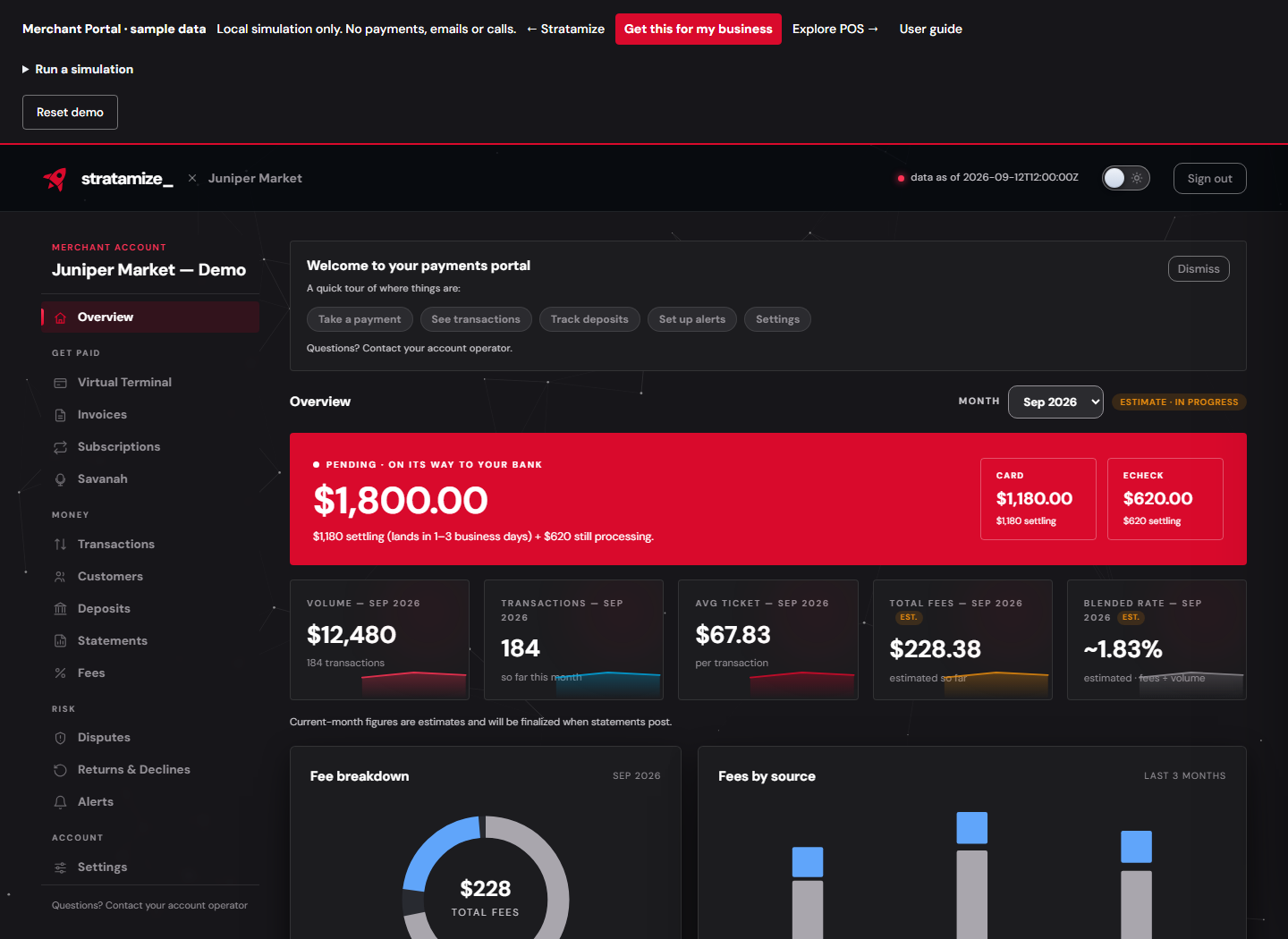
Use Overview for a quick check of processing activity, then open the detailed screen for the question you need to answer.
Navigate on desktop or phone
Desktop navigation groups reporting, payment tools, and account settings. On a phone, use the bottom navigation; More opens All tools. The same account restrictions apply. Settings contains shortcuts such as Contact & sign-in, Two-factor, Branding & receipts, Team, and Sign-ins.
Read the selected month
- Open Overview and choose the month beside Month.
- Check Volume, Transactions, Avg ticket, Total fees, and Blended rate.
- Read the status. Estimate means figures are still accruing; a closed period can remain Pending while its statement is awaited. Final indicates statement-backed figures.
- Use 30d, 90d, or 6m on Processing volume to change the chart window. Its caption shows the actual date span represented.
- Open Fees for individual charges or Transactions for payment records.
The pending-funds card separates amounts still processing from amounts settling. It is not a bank balance. Arrival wording is an estimate; use Deposits and your bank statement to confirm receipt.
When numbers look different
The overview month, chart window, and transaction filters can cover different periods. Check all three before comparing totals. A blank value is not proof of zero activity. For an apparent delay, check the data freshness indicator and reload the relevant report.