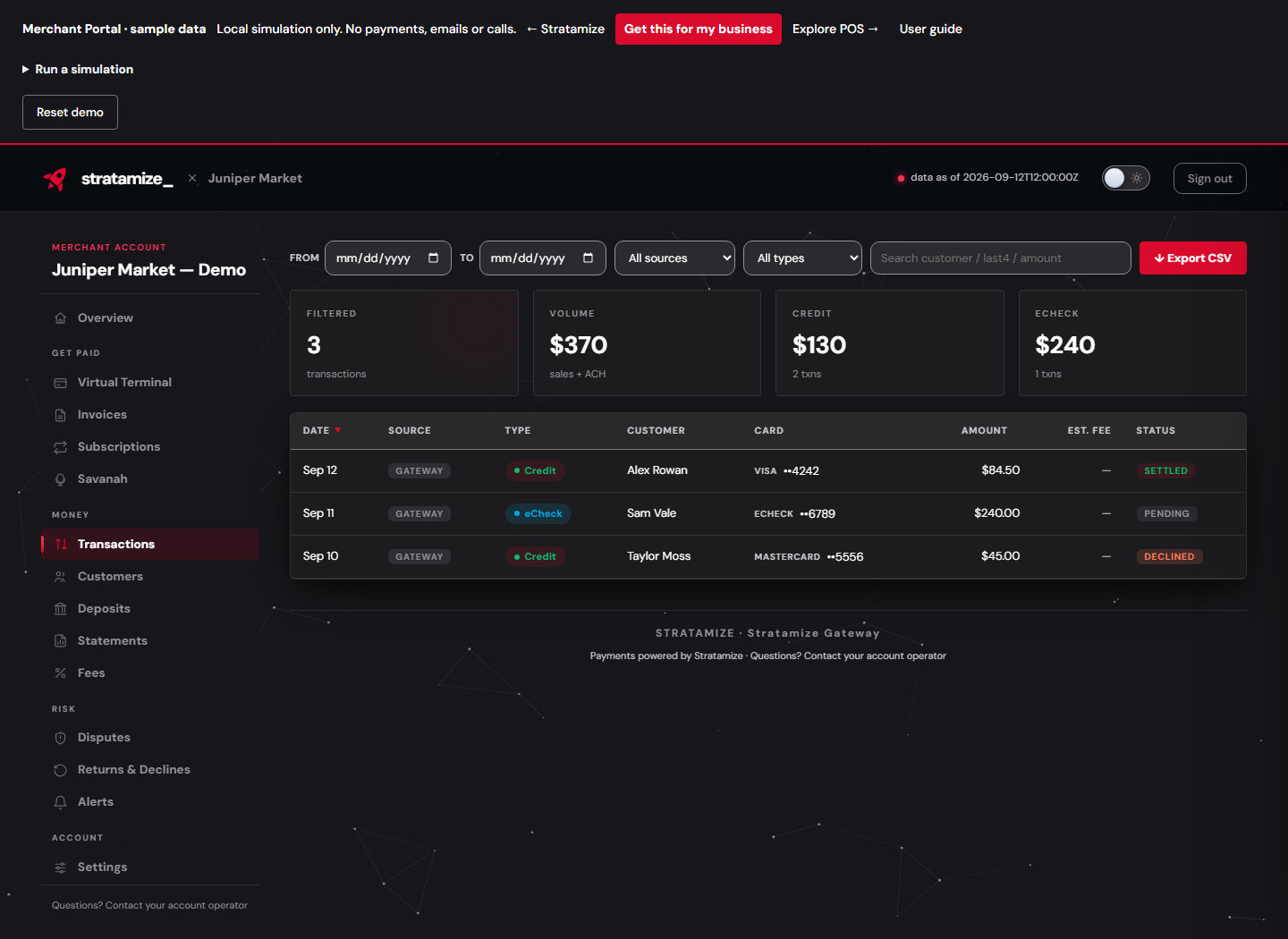
Use Transactions when a customer asks about a charge or you need a reference for reconciliation.
Find the payment
- Open Transactions and set From and To. Widen the range if the date is uncertain.
- Choose a source and type if needed. Types include Credit, eCheck, eCheck refund, Refund, Auth, and Chargeback.
- Compare customer, amount, brand, and masked last four digits. Desktop headings such as Date, Type, Customer, and Amount change the sort order.
- Select the row, or tap its card on a phone, to open the detail drawer.
- Review the identifiers, status, customer, timestamps, processing response, and fee information available.
- Close the drawer with Close.
Credit identifies the card-sale type here; it does not by itself mean a refund. No customer means the record lacks an associated customer name. A card-present badge describes the recorded entry method, not proof that funds reached your bank.
Export and verify
Choose Export CSV after setting the filters. Verify the downloaded file's period and scope before sharing it. A notice that only the first records are shown means the table is incomplete; the export is intended for the full filtered set.
The demo blocks CSV export. For a live download failure, check that your session is active and give support the date range and visible error. Never include full card or bank numbers in the request.
To interpret the result, see payment statuses.